
Authorization of Electronic Services Provided by the Financial Administration
March 5, 2026
Procedure for Authorizing Electronic Services
In order to communicate with the tax authority, you must authorize electronic services on behalf of the entity for which you are requesting to communicate. By default, after creating an account, you can only communicate under your own name as an individual.
In the following guide, we'll show you how to add authorization for your own s.r.o. The only requirement is that you be registered on the Financial Administration portal.
Step 1
The first step is to log in to the financnasprava.sk portal
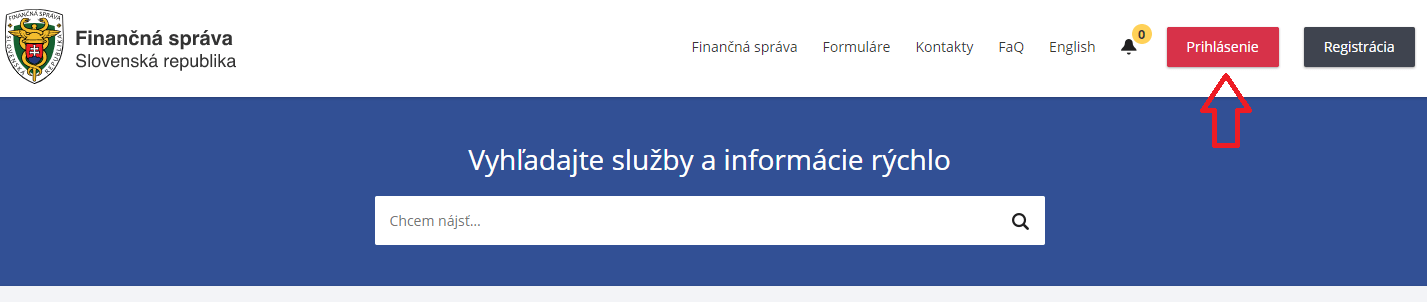
Step 2
Select the eID option. Another option is KEP, a USB token that contains your signature data and can be used as an alternative to an ID card.
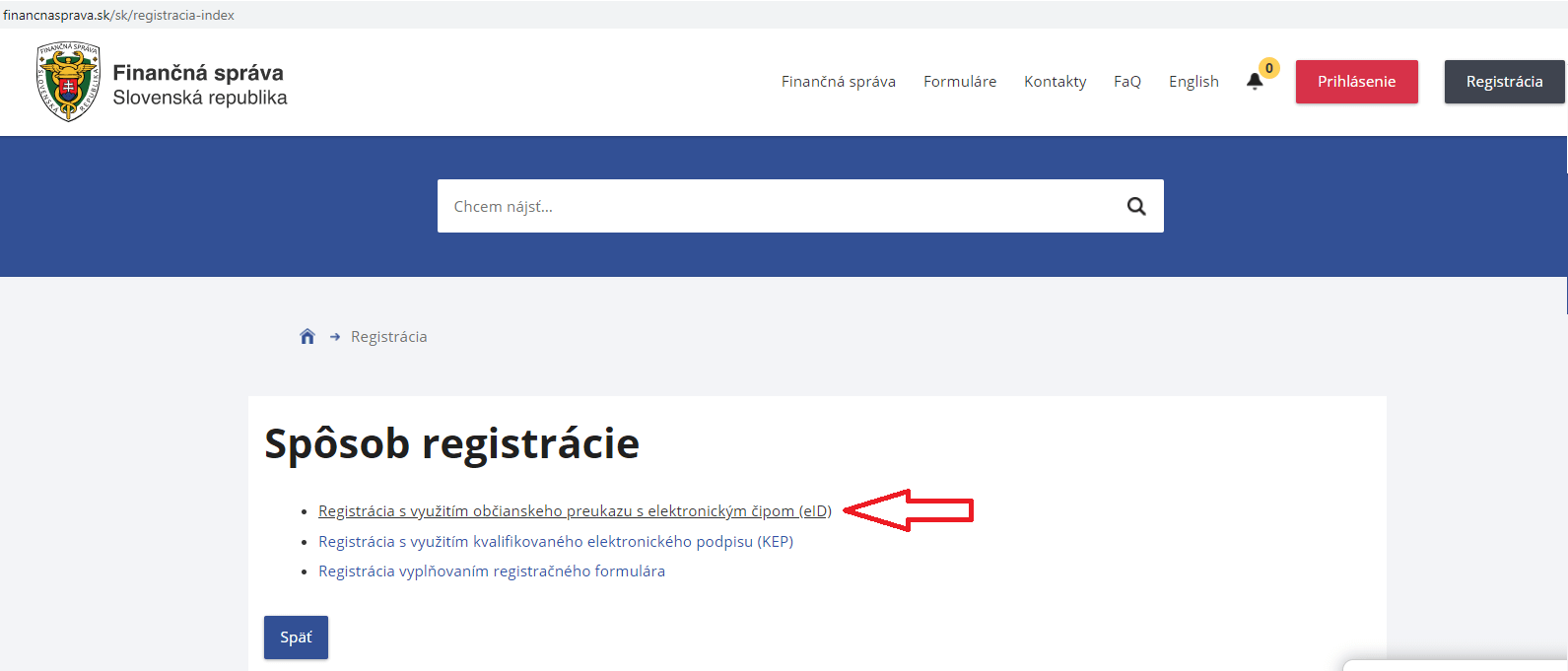
Step 3
- You must select the type of ID card. Slovak citizens should select an ID card; foreign nationals should select a residence permit or an ID card issued by another country.
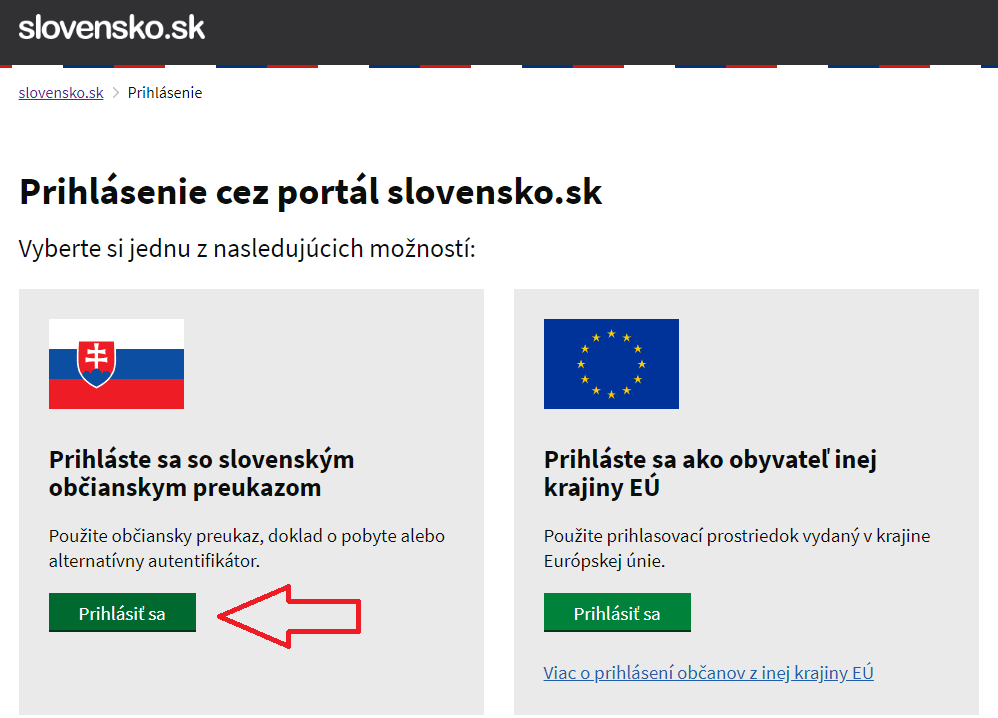
Step 4
Next, enter your name (without your business ID number). If you are an officer of a business entity, hold a business license, or act as a representative for other entities, you may have multiple entities listed.
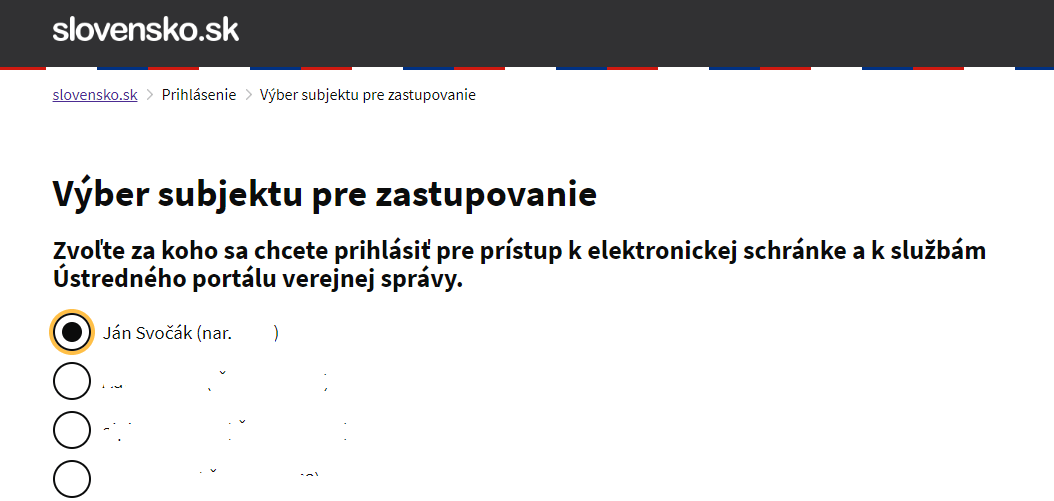
Step 5
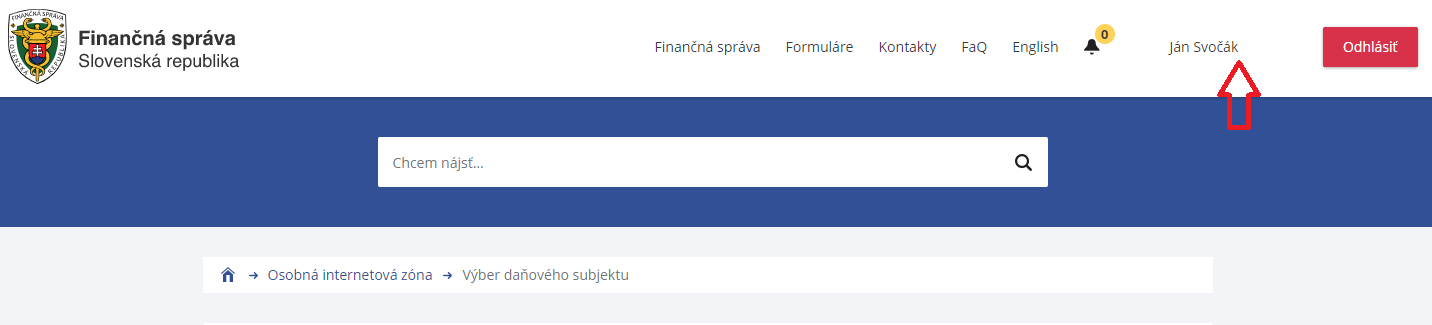
After logging in, click on your name in the upper-right corner.
Step 6
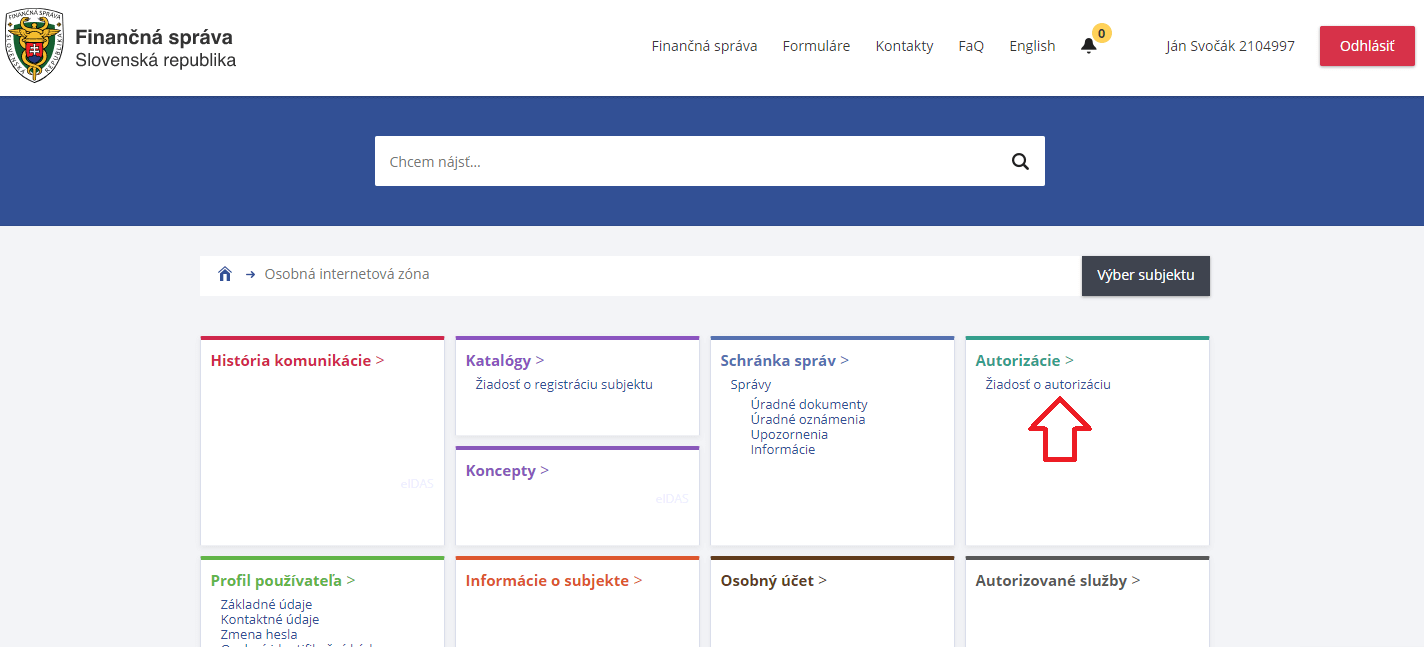
Click on the authorization request.
Step 7
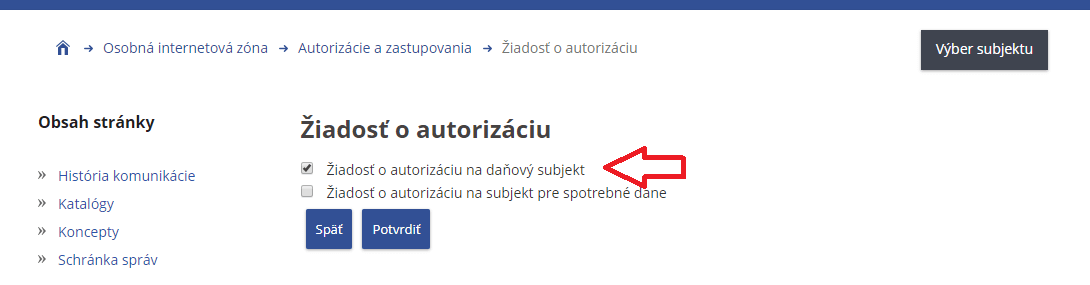
Subsequently, upon request for authorization by the taxpayer.
Step 8
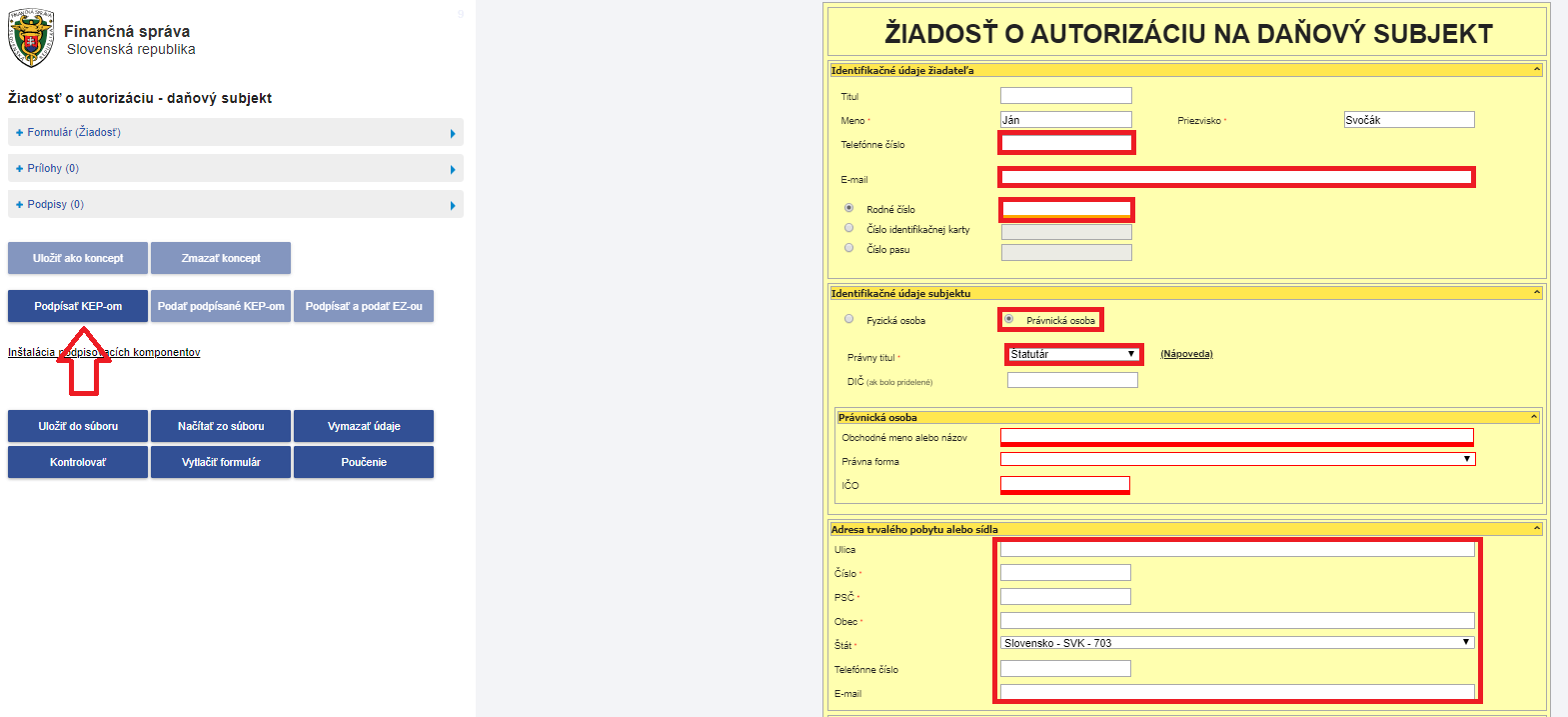
Fill out the authorization request form. All red fields must be filled out. You do not need to enter your tax ID number. Once you have filled out the form, click "Sign" on the left.
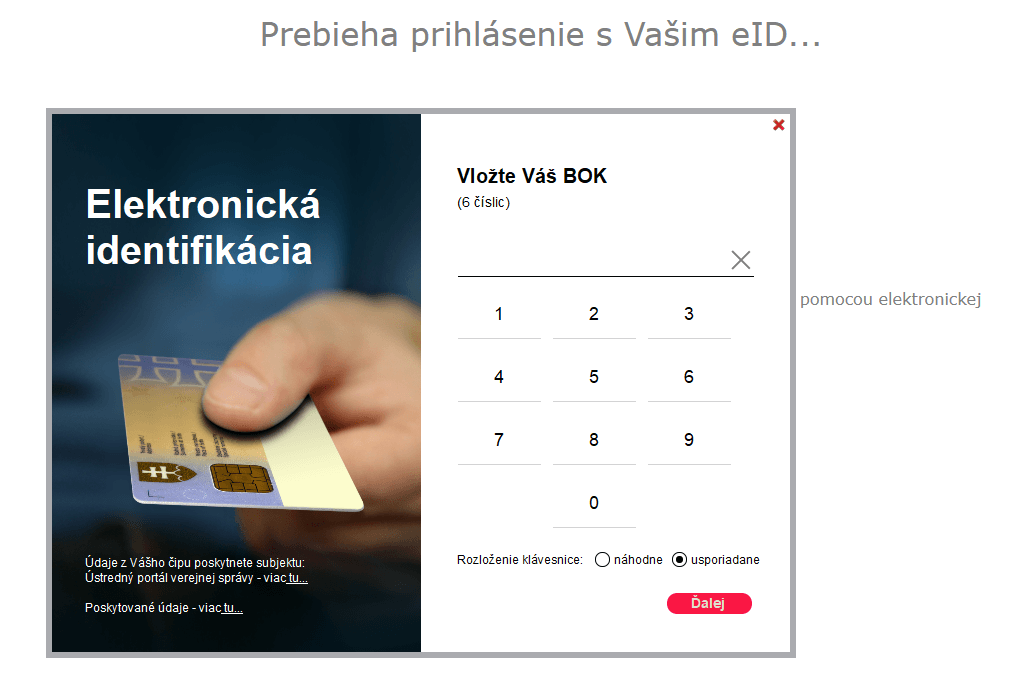
Step 9
You will then need to re-enter the BOK.
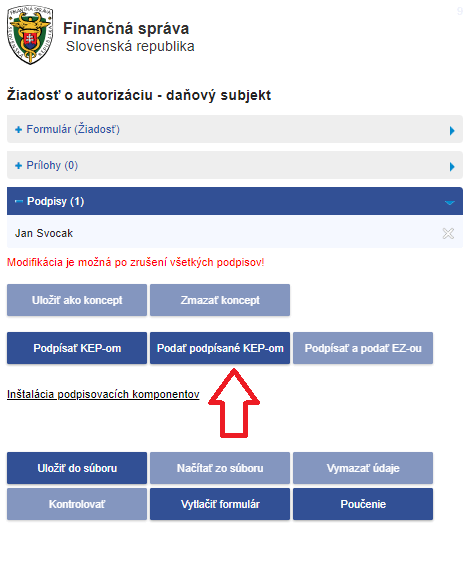
Step 10
The final step is to submit the signed application.
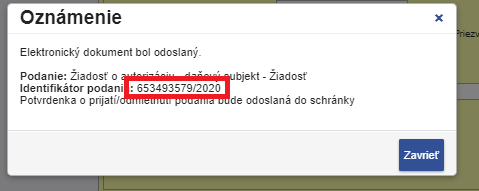
Step 11
Be sure to write down the filing number in case it gets lost somewhere in the system and needs to be tracked down manually.
At TaxWise, we handle all necessary authorizations on behalf of our clients as an accounting firm. This means our clients do not need to deal with any authorizations, except in cases where they wish to review our work. If you are interested in comprehensive services, including representation before all government agencies, please feel free to fill out a non-binding request for accounting services or consulting services.

