
Registration on the Financial Administration Portal
March 5, 2026
To gain access to your personal account or your company’s account, you must first register. Once registered, you’ll be able to file returns and monitor your accountant’s work. Here’s a step-by-step guide on how to register in 5 minutes.
To even get started, you need to have an eID (electronic ID card) with a chip, and the chip must be activated. If it isn’t activated, you’ll need to go to the police station—the ID card department—where they’ll do it for you on the spot. The second requirement is to have the eID software installed. Instructions on how to do this.
Registration Process for the Financial Administration Portal
Step 1
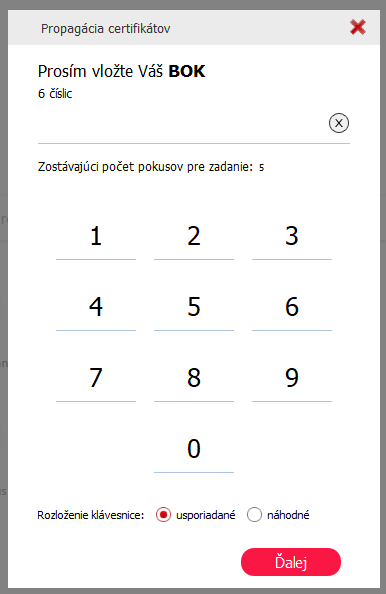
The first step is to insert the card reader—with the eID card inserted—into the computer. After a few seconds, you will be prompted to enter your BOK. The BOK is the number you chose yourself when you had your certificates loaded onto your ID card at the police station.
Step 2
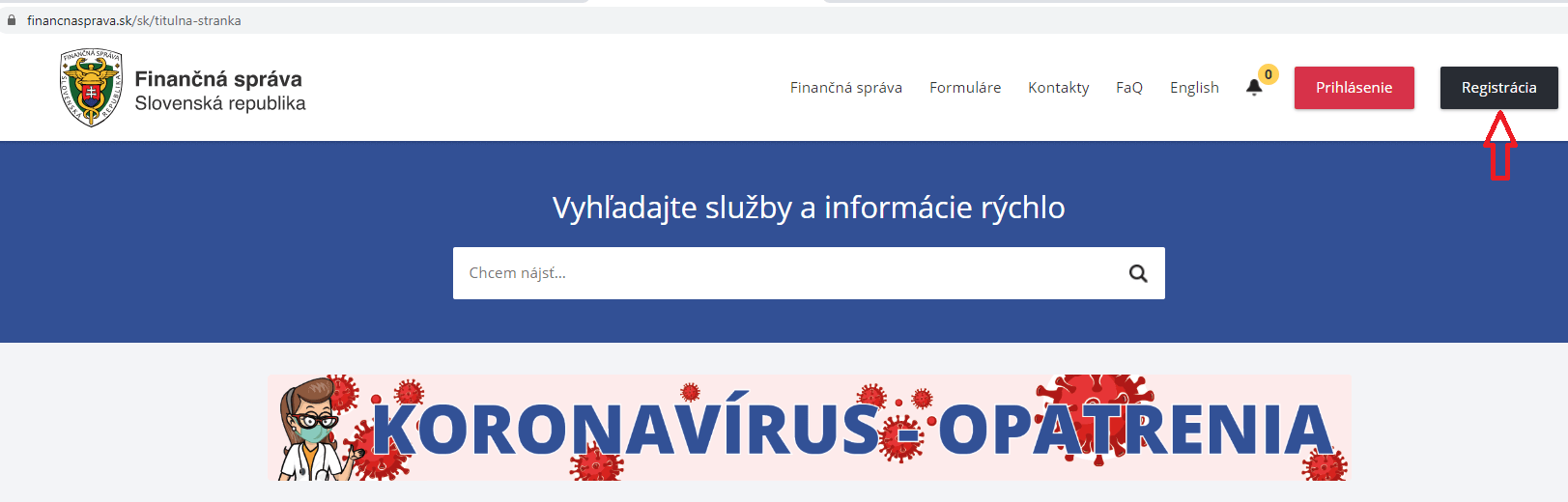
Next, enter the address finančna správa .sk into your browser and click the "Registration" button
Step 3
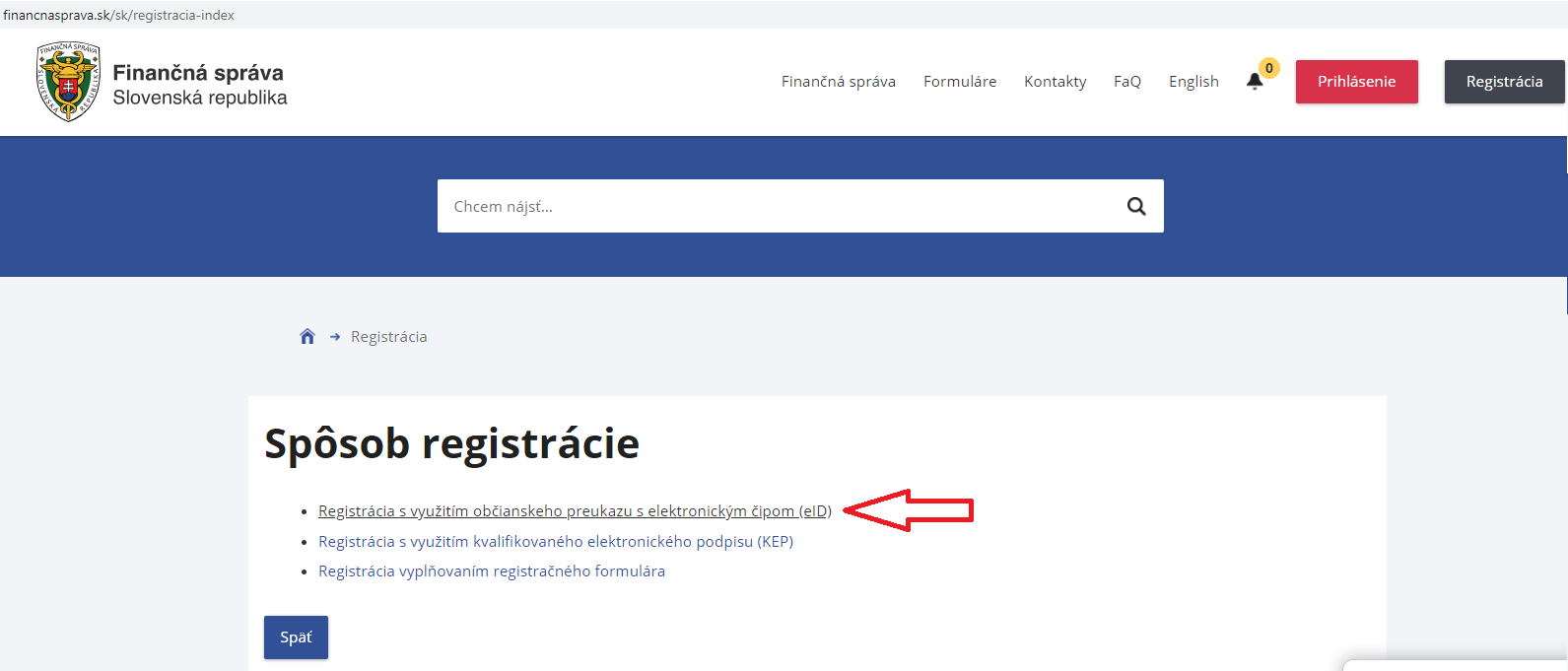
Select the eID option. Another option is KEP, a USB token that contains your signature data and can be used as an alternative to an ID card.
Step 4
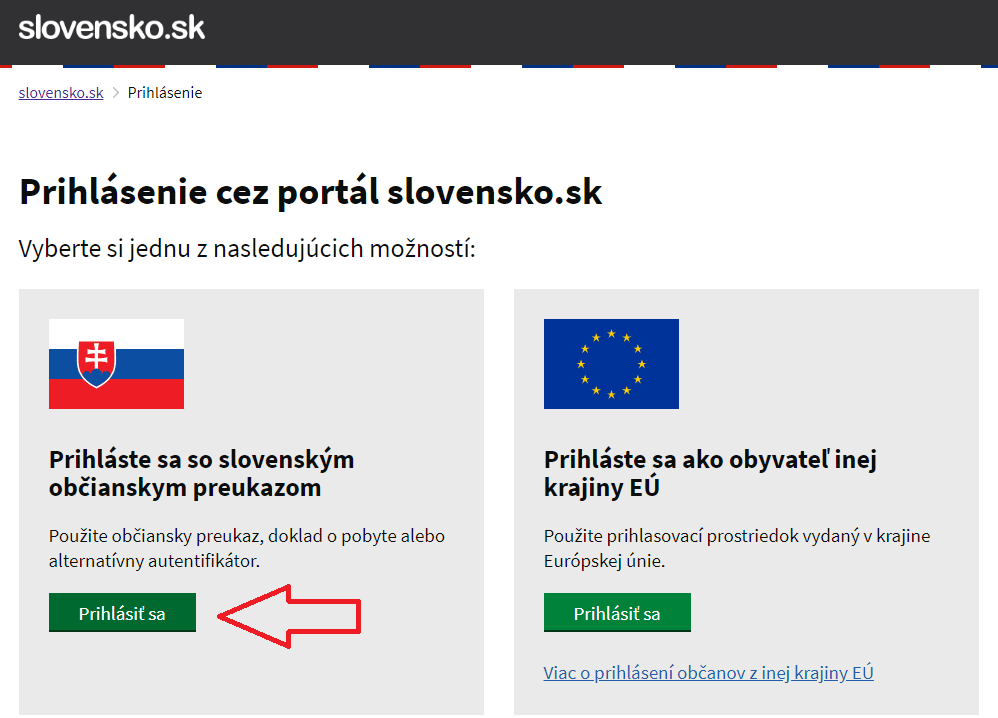
You must select the type of ID card. Slovak citizens should select an ID card; foreign nationals should select a residence permit or an ID card issued by another country.
Step 5
Next comes verification using the BOK number.
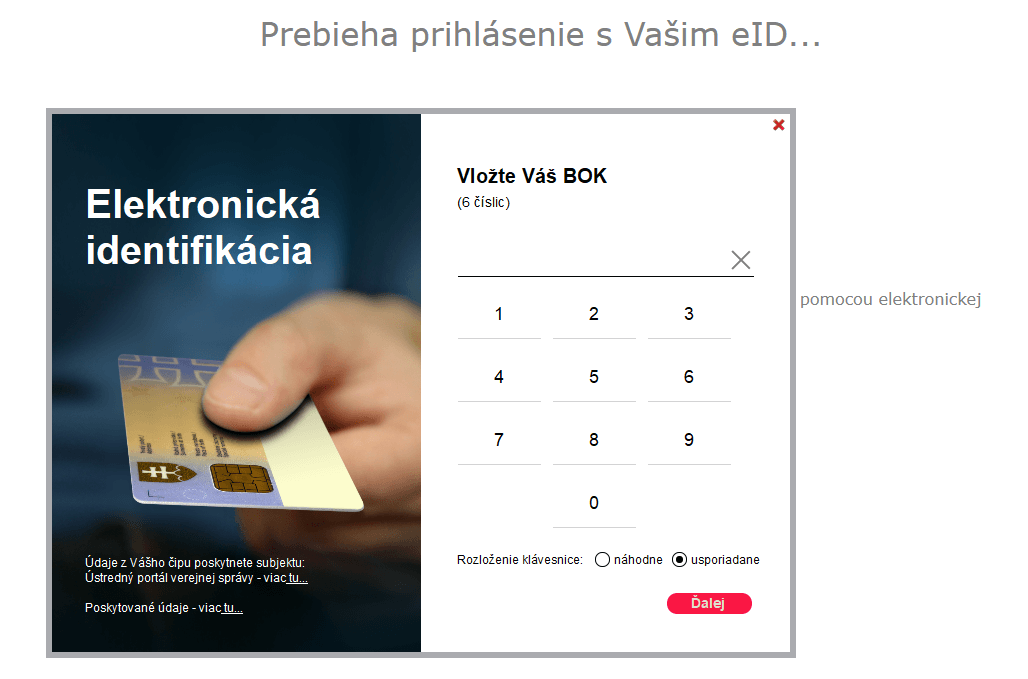
Step 6
Next, enter your name (without your business ID number). If you are an officer of a business entity, hold a business license, or act as a representative for other entities, you may have multiple entities listed.
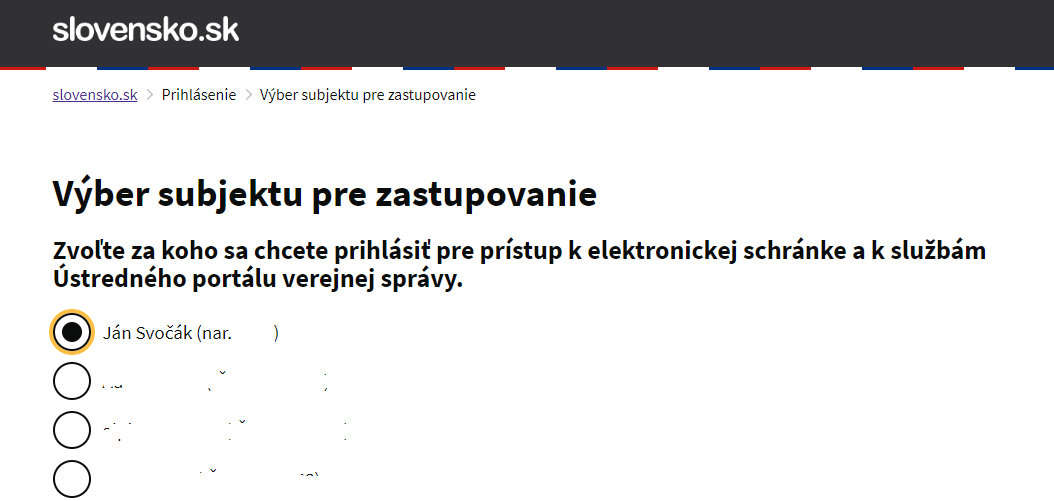
Step 7
Next, fill out the registration form and confirm by clicking the "Register" button. Some of the information will already be pre-filled.
7a
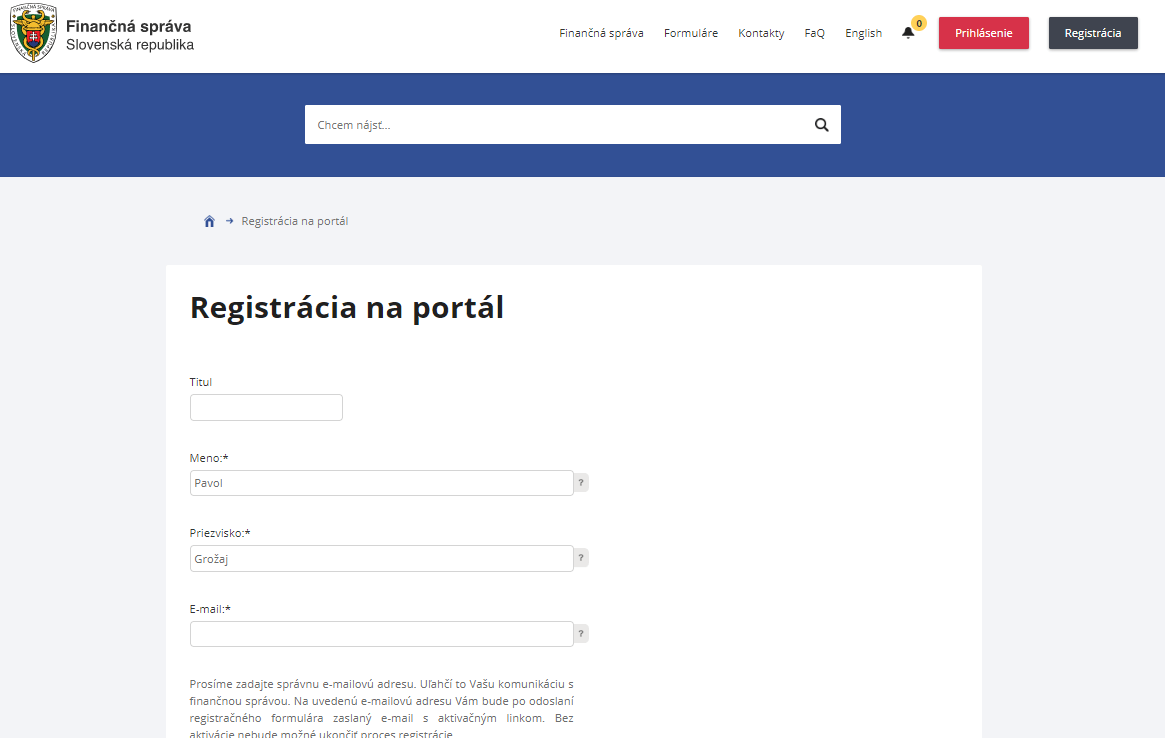
7b
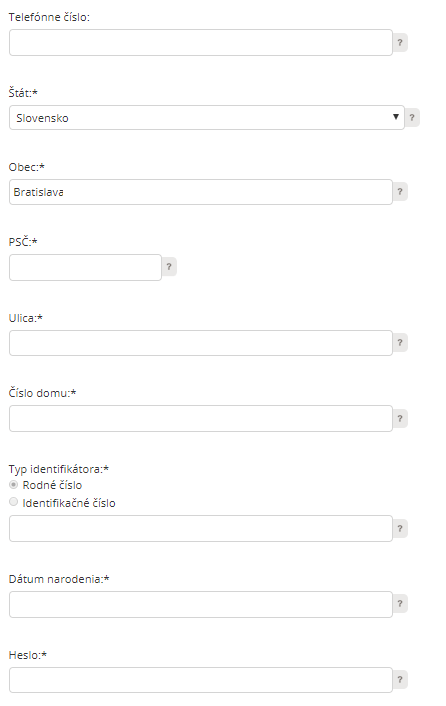
7c
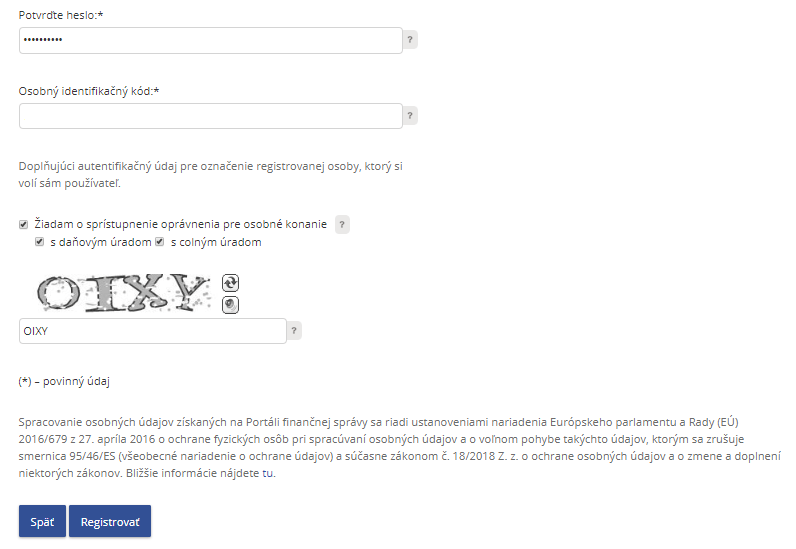
Step 8
Once your registration is confirmed, you will receive a reply via email that you must confirm, and your registration will be activated within a few minutes.
Sometimes, the information on the portal may not match the information on your eID, or there may be some other technical issue, making it impossible to complete the registration. In this case, we recommend contacting the Financial Administration Contact Center at 048/43 17 222 (then select option 1), where they will always be happy to assist you. We have encountered about 4–5 such cases, all of which were resolved promptly.
As part of the TaxWise accounting firm, we automatically represent clients before the tax authorities. This means you do not need authorization services or registration on the portal. If you are interested in comprehensive services, including representation before all government agencies, please feel free to fill out a non-binding request for accounting services or consulting services.

